
Configuring the app
Credentials for outbound requests are configured once on the Primer Web Requests app, not on each action. When you connect the app you can set:
Keep credentials on the app rather than in a custom header: values on the app are stored with the app connection, whereas custom header values are part of the workflow definition and visible to anyone who can edit the workflow. Connect the app once per set of credentials; you can connect it several times if different workflows need different credentials.
Restrictions
The action currently has the following restrictions:- requests are synchronous: the workflow waits for the response before continuing
- only https endpoints are supported
- only
GETandPOSTmethods are supported - only JSON and form URL encoded (
application/x-www-form-urlencoded) request bodies are supported. A JSON payload must be a JSON object - custom headers are supported, except for a set of blocked headers that are dropped from the request
- requests to private or internal network addresses,
localhost, and anyprimer.iodomain are rejected - the request is sent exactly once; failed requests are not retried
- the response body is only available to later blocks if it is a JSON object
Sending the request
Configure the following inputs to set up the action:
Example JSON request with a placeholder for some variables. Use the variable selector to assign outputs from different blocks when creating this request.
JSON
Sending a form URL encoded body
Some APIs expectapplication/x-www-form-urlencoded instead of JSON. Set Body format to Form URL encoded and add one entry per field under Form fields. Brackets in field names are kept, so you can build nested values, for example items[0][price]. Names and values are URL encoded when the request is sent.
For example, these fields:
are sent as:
Request body
- a field with an empty name is skipped
- a field with an empty value is sent as
name= - the same name can appear more than once, for example
expand[]. Fields are sent in the order of the list
Headers sent with the request
Every request includes the following headers unless noted otherwise. Header names are case-insensitive, so a custom header with the same name as a default replaces it.
Tracing headers used internally by Primer are not forwarded to your endpoint.
Blocked headers
For security reasons, some headers cannot be set through Custom Headers. If a blocked header is configured, it is dropped and the request is still sent. The Workflow Run shows a message listing the headers that were dropped:Workflow Run message
URL validation
The Target URL is validated before the request is sent. The action fails without sending anything if:- the URL does not use the
httpsscheme - the host is
localhost, a private or internal IP address (such as10.x.x.x,172.16.x.xto172.31.x.x,192.168.x.x,127.x.x.x, link-local or other reserved ranges, or their IPv6 equivalents), or a hostname that resolves to one of these addresses - the hostname cannot be resolved
- the host is
primer.ioor any subdomain of it. This prevents workflows from calling Primer and starting themselves again in a loop.
Invalid URL, scheme not allowed: http.
Handling the response
The following response data is available in the output of the action:
You can pass this data to another workflow block using the variable selector. For the Response Body, you must specify the path to the variable you want to use.
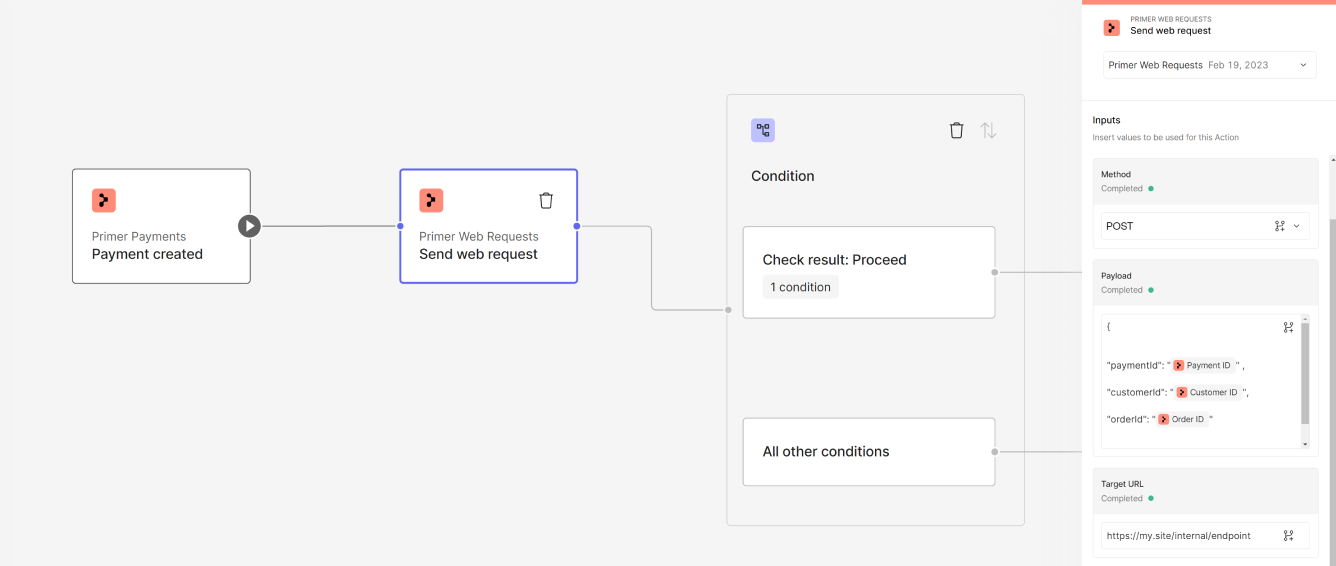
Condition example
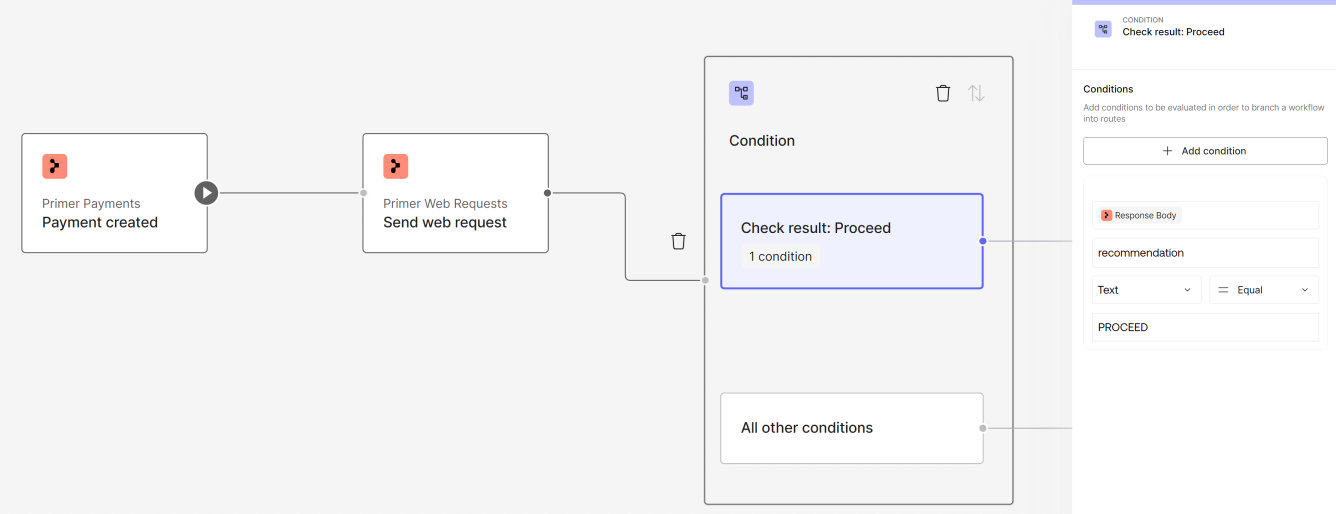
Condition example
Authorization, Cookie, or headers whose names end in -Key, -Token, -Auth or -Secret are masked there.
Timeouts
The request is sent exactly once. If it times out or fails, it is not retried, so your endpoint will not receive duplicate requests from a single action execution. If you need retries, add them to your workflow explicitly or handle them on your side.
Keep your endpoint’s response time well below the limits above. When this action runs as part of a payment flow, for example before authorizing a payment, the checkout waits for the workflow to finish and a slow endpoint delays the payment result for your customer.
Failure handling
A request is treated as unsuccessful when:- the Target URL fails validation or, when Body format is
JSON, the JSON payload is not valid JSON - the connection fails or times out, or the server does not respond in time
- the server responds with a status code outside the
2xxrange
Unexpected http response code [503] from https://example.com/recommend.
Set Fail action on unsuccessful request to False to let the workflow continue instead. The action then completes with Success set to false. When a response was received, Response status, Response content-type and Response Body are still populated so you can branch on them. When no response was received, for example on a timeout or an invalid URL, only Success is set and the Workflow Run shows a message explaining why, such as the target server took too long to respond.
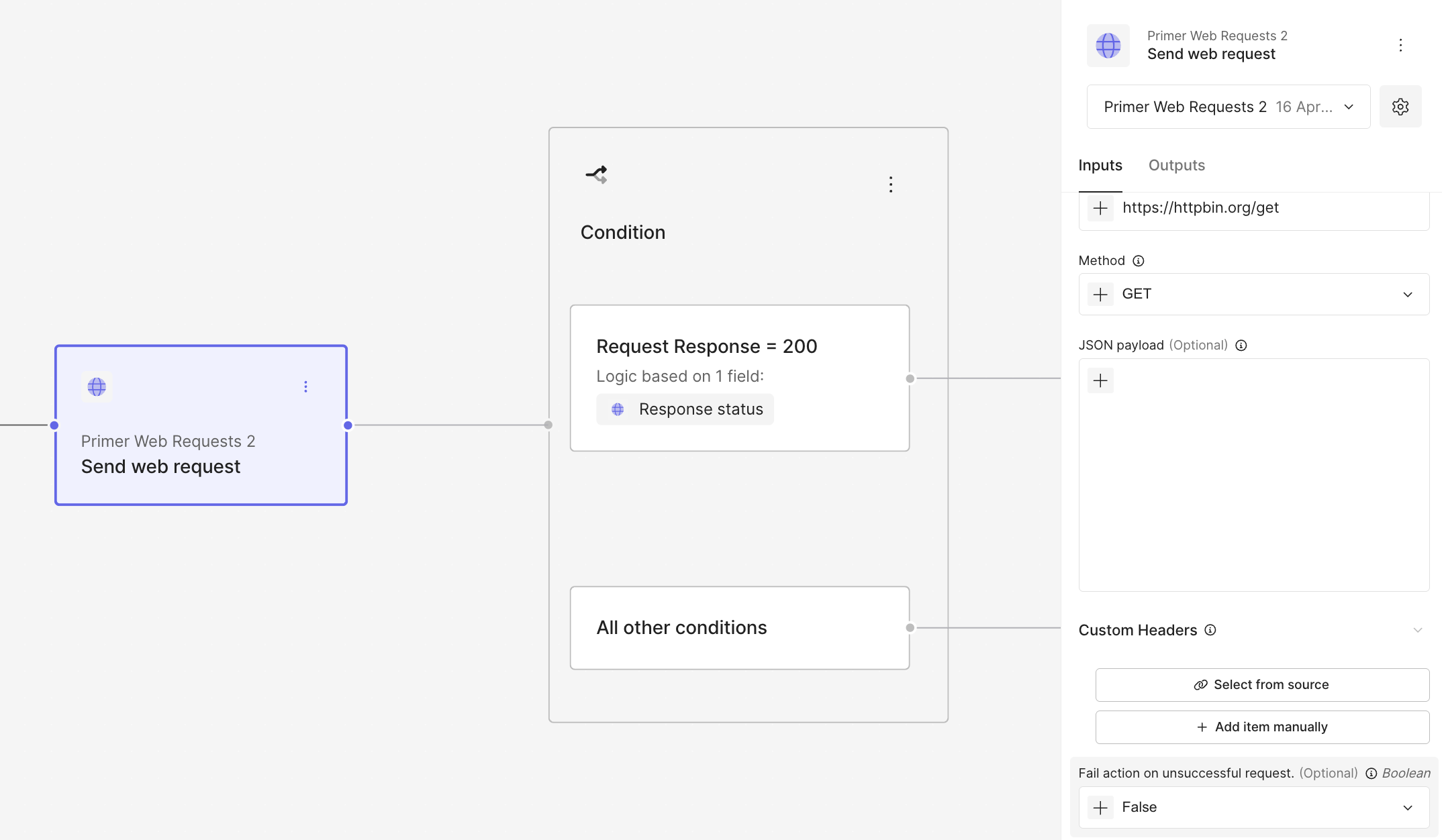
Handling unsuccessful request example
Example flow
An example use of the send web request action could be to use an internal recommendation engine before authorizing a payment. If the response contains a “recommendation” field with a value “PROCEED”, then the payment flow continues, otherwise the payment gets declined.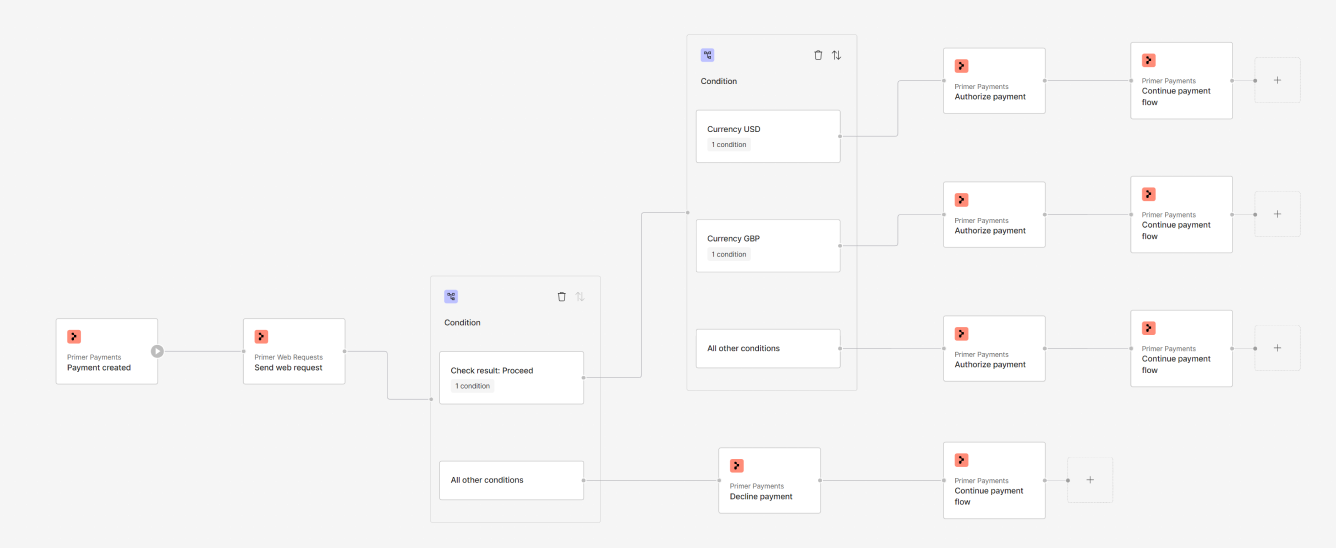
Send web request action example
Start automating
- Now that you know what can be achieved with this action, start creating a workflow.
- Debug received requests or requests sent within the Workflow Runs